Tactile Clock
| Repo: | IzzyOnDroid |
| AppID: | de.eric_scheibler.tactileclock |
| Author: | Eric Scheibler |
| License: | GPL-3.0-only |
| Donation: | Webpage |
| InRepoSince: | 2023-03-04 |
| LastRepoUpdate: | 2026-06-23 |
| LastAppUpdate: | 2026-06-23 |
| LastVersion: | 2.6.2 |
| Categories: | Time |
| APK source: | Github |
| Google Play: | Check if it's there |

This Android app vibrates the current time when the display is locked and you double-click the power button of your device.
How it works
Double-click the power button. This might take some practice to work reliably. Press slowly and deliberately. If you double-click too fast the system only recognizes a single click and turns the screen on instead.
The time vibration is structured as follows:
A short vibration stands for the digit 1 and a long one for the digit 5. The 2 is represented by two consecutive short vibrations, the 6 by a long and a short one and so on. The 0 constitutes an exception with two long vibrations.
Examples:
- 00:00 = -- --
- 01:18 = . . -...
- 02:51 = .. - .
- 10:11 = . -- . .
- 19:06 = . -.... -.
Explanation:
The time is processed digit by digit:
- . = short vibration
- - = long vibration
Leading zeros in the hour and minute fields are omitted.
Gaps:
To simplify the recognition of the vibration pattern, there exist three kind of gaps with different durations:
- []: A short gap between vibrations in the same digit
- [ ]: A medium gap for the separation of two digits within the hour and minute field
- [ ]: A long gap to split hours and minutes
Additional features
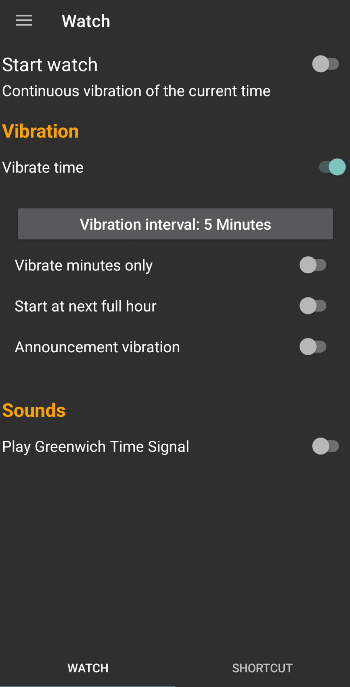
- Keep informed about the current time. The app can vibrate the current time automatically every X minutes or every hour.
- Play the Greenwich Time Signal at the start of each hour, similar to a radio station.
- Trigger time vibration with Tasker (see below for details)
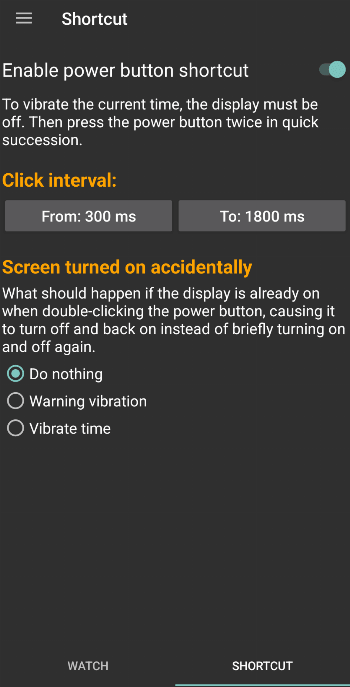
- Decide what to do if you double-click when the display is on. You can choose between a warning vibration and having the time vibrated as well.
- The app starts automatically after the system reboots.
Double-click conflict
TactileClock is triggered by clicking the power button twice in quick succession. This may conflict with the 'built-in' double-click action of your Android device. For example, a Google Pixel device will typically launch the camera when the power button is double-clicked; a Samsung device may take a screenshot when the power button is double-clicked.
If your device has a 'built-in' action when the power button is double-clicked, there are three options to get TactileClock working.
Option 1: Disable the 'built-in' double-click action of your device.
- Google Pixel: (Settings > System > Gestures > Quickly open camera)
- Samsung Galaxy: (Settings > Advanced Features > Side Button > Double Press)
- Other devices may require different settings to disable the double-click action.
Once the 'built-in' double-click action has been disabled, double-clicking the power button will trigger the TactileClock action.
Option 2: Configure TactileClock to trigger after a long double-click.
This will allow the 'built-in' double-click action to co-exist with the TactileClock double-click action.
1. Open TactileClock 2. Swipe left to show the 'Shortcut' screen. 3. Modify the 'Click Interval:'. 3a. Set 'From:' to be 500ms. 3b. Set 'To:' to be 1500ms. The From: and To: values specified above should work, but may need to be adjusted for optimal results on your device. Once configured, a fast double-click will trigger your devices 'built-in' action, while a slow double-click will trigger the TactileClock action.
Option 3: Use Tasker to trigger time vibration with custom events
WhatsNew:
Add support for Android 17